Configure
First steps
Jira is configured per customer — each Kimai customer points at its own Jira instance, so a company running two clients on two separate Jira servers configures each customer independently.
- As an admin, open a customer (Customers → edit a customer → Jira) and fill in that customer's Jira server URL and auth mode (plus the sync and import options you want).
- Each user opens Jira settings from their user menu — an overview lists every customer they can hold a token for — picks a customer, and pastes their own token for that customer's Jira. A Test connection button reports a specific result (rejected credentials / DNS / TLS / timeout). A user who tracks time for two customers holds two tokens, one per customer.
- Fill the Jira issue field on a timesheet — the worklog appears once the entry is stopped or saved with an end time. It syncs to the Jira of the timesheet's customer (timesheet → project → customer), using that user's token for that customer.
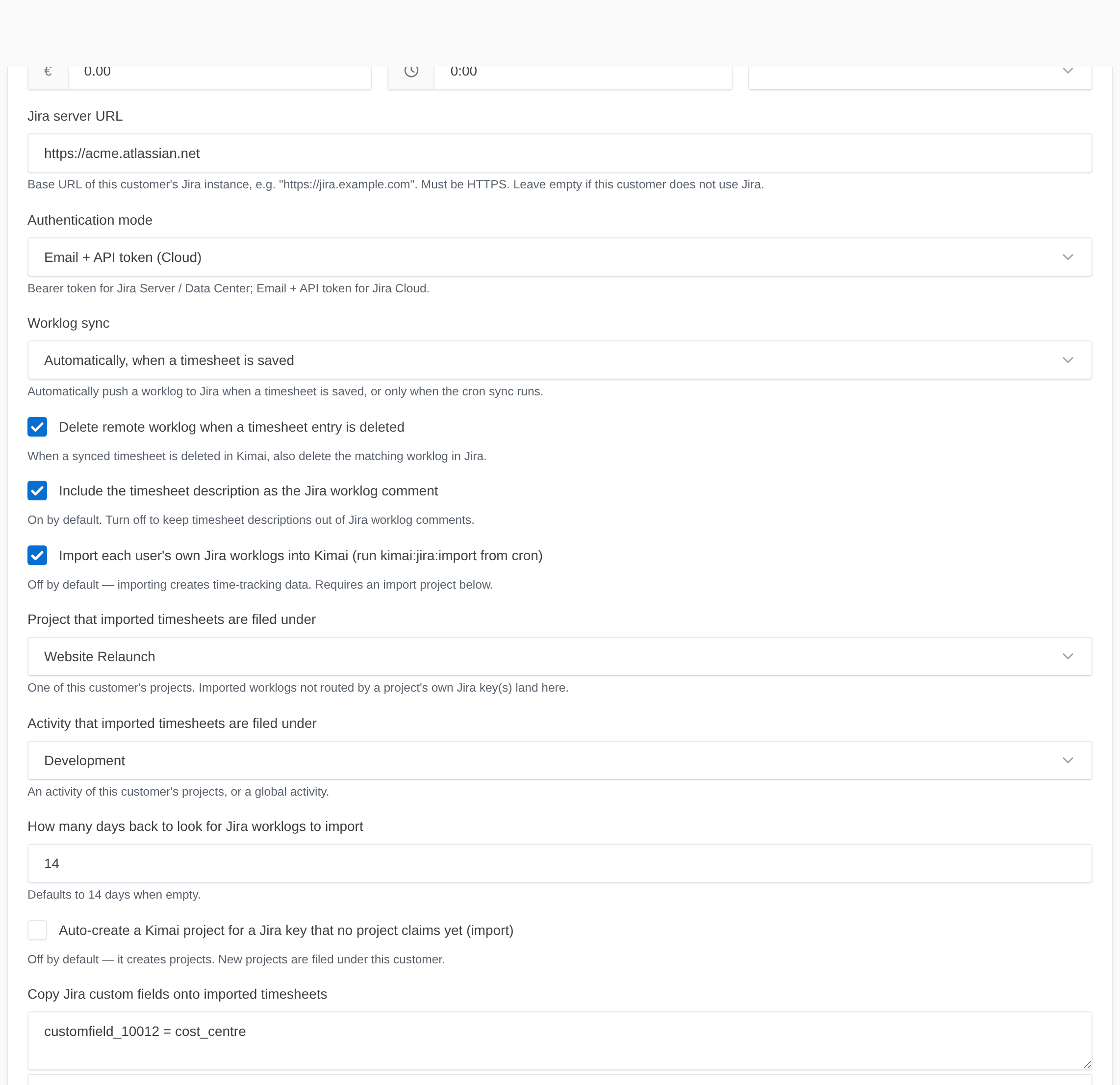 Step 1 — an admin configures Jira on the customer. Each customer can point at a different Jira.
 Every user manages their own token for each customer here — each is encrypted at rest and
never shown back.
Every user manages their own token for each customer here — each is encrypted at rest and
never shown back.
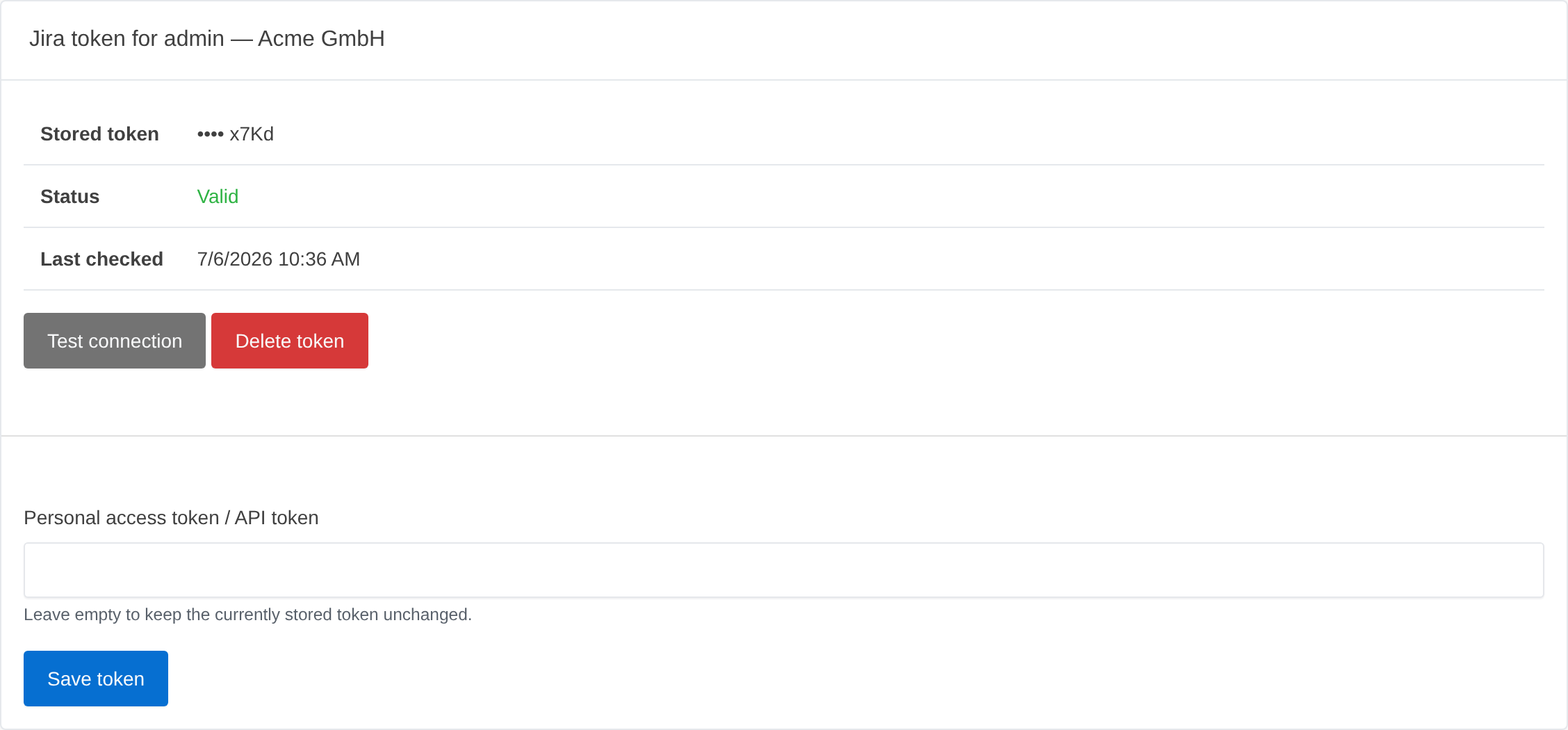 Step 2 — a user pastes their token for one customer; the status is validated on save, via Test
connection, and by a daily heartbeat.
Step 2 — a user pastes their token for one customer; the status is validated on save, via Test
connection, and by a daily heartbeat.
Authentication
The auth mode is set per customer (jira_auth_mode on that customer), because it depends on
which kind of Jira that customer runs:
- Jira Server / Data Center —
jira_auth_mode = bearer; each user pastes a personal access token (Jira profile → Personal Access Tokens) for that customer. - Jira Cloud —
jira_auth_mode = basic; each user pastes an API token (id.atlassian.com) for that customer and sets their Jira account email under Kimai preferences (section "Jira").
The server URL is a security boundary — a user's token is sent to whatever host that customer
names — so it is validated when you save the customer: it must use https:// (tokens are never
sent in clear text) and must not point at a private, loopback, or link-local address. Changing a
customer's URL re-validates every stored token for that customer on the next daily heartbeat, since
a token proven against the old host says nothing about a new one.
Cron
The reconciler and (optional) importer run from cron — add these as the user Kimai's own cron runs as:
# Reconciler: drains anything that couldn't sync inline (every 5 minutes)
*/5 * * * * cd /path/to/kimai && bin/console kimai:jira:sync   >> var/log/jira-cron.log 2>&1

# Importer: pulls each user's own Jira worklogs into Kimai (opt-in; e.g. hourly)
0   * * * * cd /path/to/kimai && bin/console kimai:jira:import  >> var/log/jira-cron.log 2>&1

# Admin weekly digest (Monday mornings)
0 8 * * 1   cd /path/to/kimai && bin/console kimai:jira:sync --digest >> var/log/jira-cron.log 2>&1
For cron-sent emails to link back to your instance, set framework.router.default_uri in your
Kimai config so links resolve to your real domain instead of localhost.
The kimai:jira:sync cron also carries the license heartbeat
Sync and import only run with a valid license. Beyond draining worklogs, the kimai:jira:sync
cron carries the daily license heartbeat — the only thing that resets the offline-staleness
clock. Leave it unscheduled and a paid, online install degrades its Jira features after ~44 days.
See License.
Per-customer field reference
Every Jira setting lives on the customer edit form (Customers → edit a customer → Jira). Each customer is configured independently. What each field does is covered in the guides:
jira_server_url,jira_auth_mode,jira_sync_mode,jira_delete_remote,jira_sync_comment— connection and outbound-sync behaviour (worklog sync).jira_import_enabled,jira_import_project,jira_import_activity,jira_import_window_days— the opt-in import target (Importing); per-project routing and auto-create send different Jira projects to different Kimai projects (Per-project routing, Auto-create).jira_autocreate_enabled— auto-create projects under this customer (Auto-create).jira_import_fields— custom-field mapping (Custom-field passthrough).- Notifications — Notifications & visibility.